FAQ — how Appliance TechLine works
General overview — log in to see sections for your specific role.
For everyone
What is Appliance TechLine?
A platform connecting appliance repair technicians, on-site and mid-job, with paid "Support Experts" who give live diagnostic help over the phone (or video). You describe the appliance and symptom, pick a support plan, and request a call — a support expert picks up your case and calls you back through the platform.
This is technical guidance only — the technician performing the work stays responsible for final diagnosis, repair decisions, safety, and code compliance.
How do I create an account and log in?
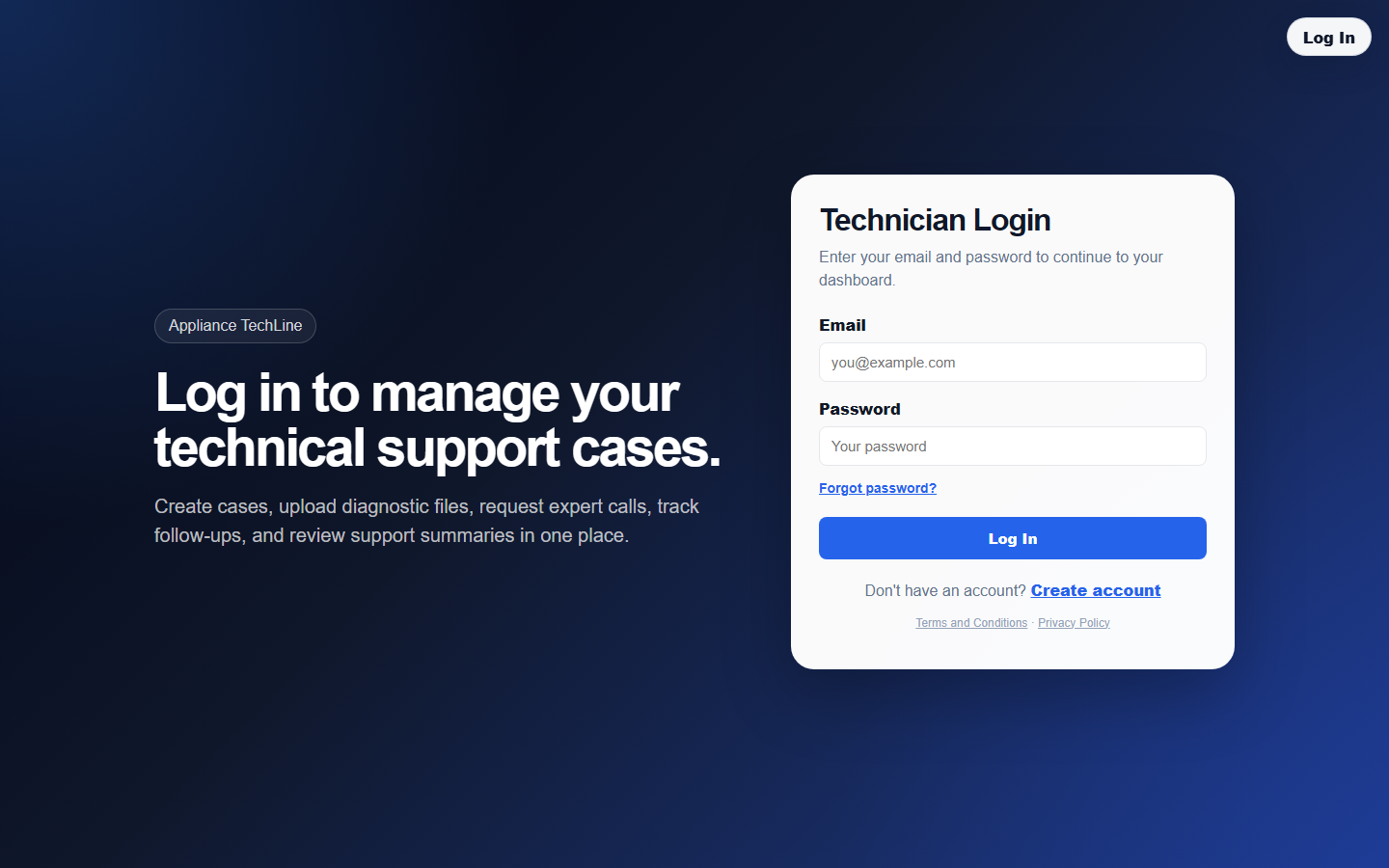
Sign Up creates your technician account (name, phone, optional company name, email, password). After signing up you log in with email and password on the same /login page every account type uses — the dashboard you land on afterward depends on your role.
How do I create a support case and request a call?
Dashboard → Create New Support Case. Fill in appliance type, brand, model number, serial number, error code, a description of the problem, the required skill (basic, advanced, sealed system, commercial, PCB, HVAC...), your callback phone number, and preferred language. Creating the case also saves your phone/language to your profile for next time.
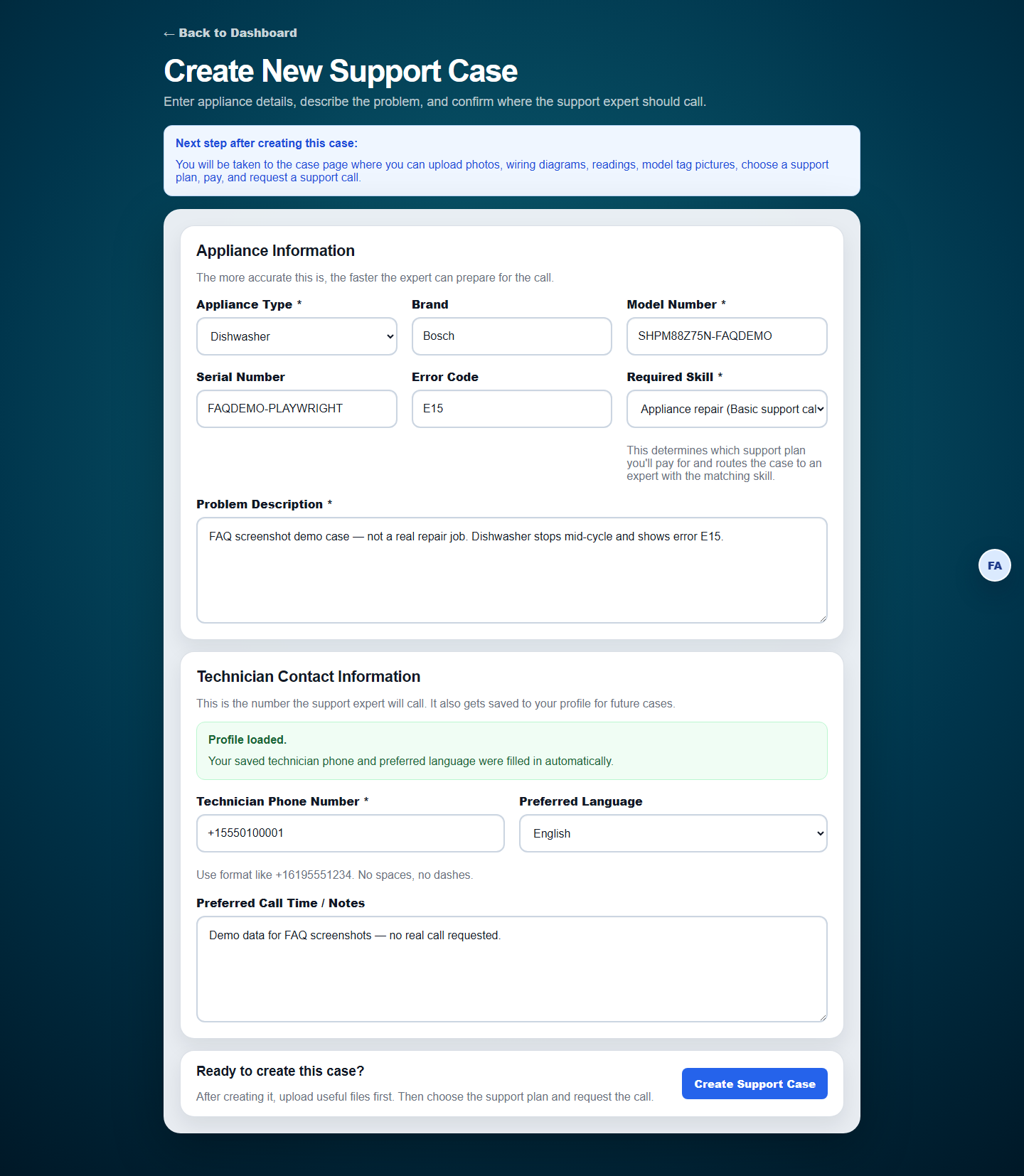
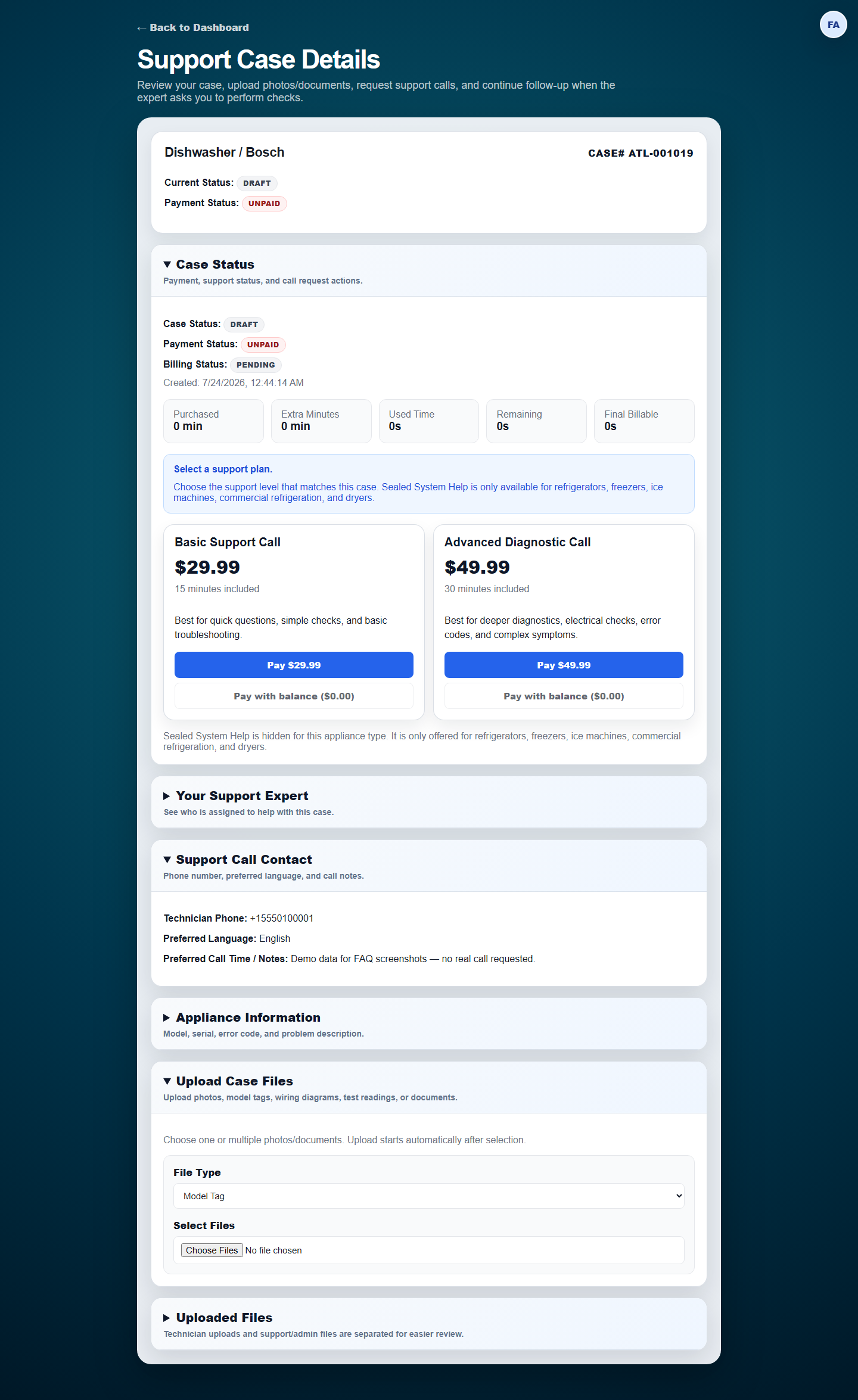
After creating the case you land on its detail page, where you upload photos/diagrams, choose a support plan (Basic or Advanced) and pay, then request the call. The case moves through statuses — Draft → Paid, waiting for your request → Waiting for Support Call → In Progress → Completed — and follow-up calls go through the same "request a call" action once a support expert asks you to run more checks.
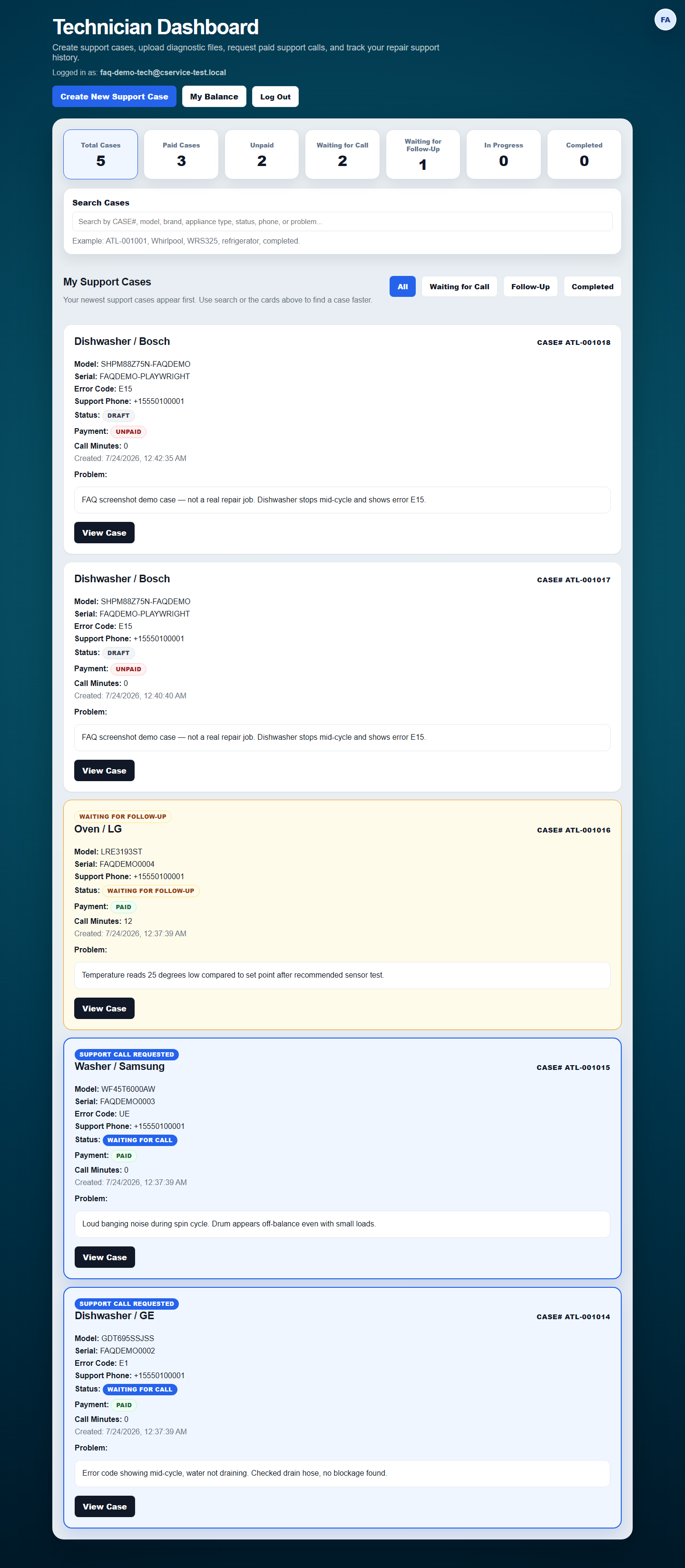
What do the dashboard statuses and filters mean?
Your dashboard shows every case you've created with quick-filter stat tiles: Total, Paid, Unpaid, Waiting for Call, Waiting for Follow-Up, In Progress, Completed. A red "Payment Required — On Hold" banner appears if a case needs an additional payment (for example, if the required skill changed after you already paid).
What happens during and after the call?
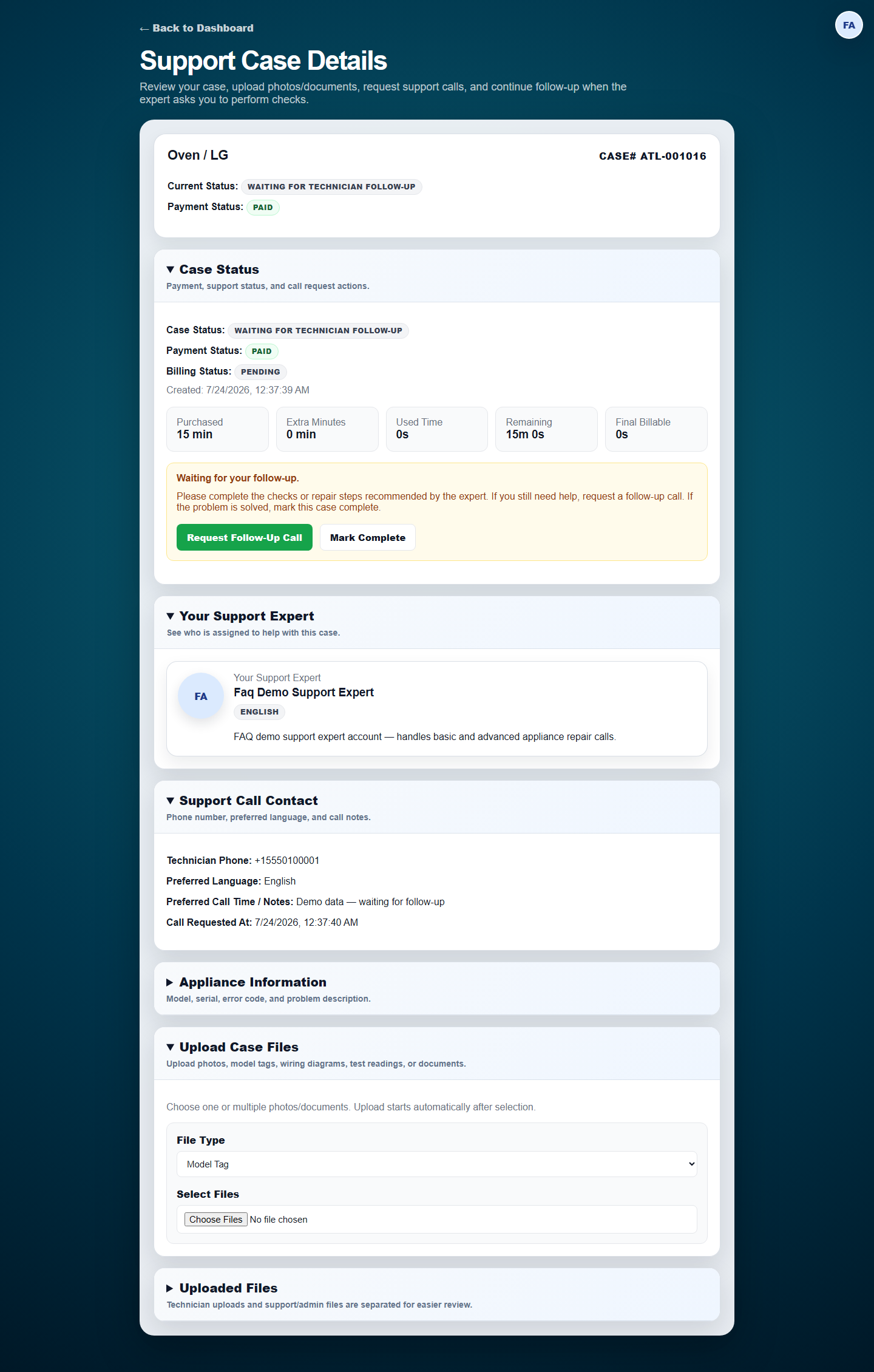
A support expert calls you (through RingCentral) or starts a video call from their side — either way, the case detail page tracks call minutes used, and the expert can mark the case complete with a written support summary once you're done. If your case runs past its purchased minutes, you may be asked to approve/pay for extra minutes before the expert can continue — that shows up as its own status on the case.
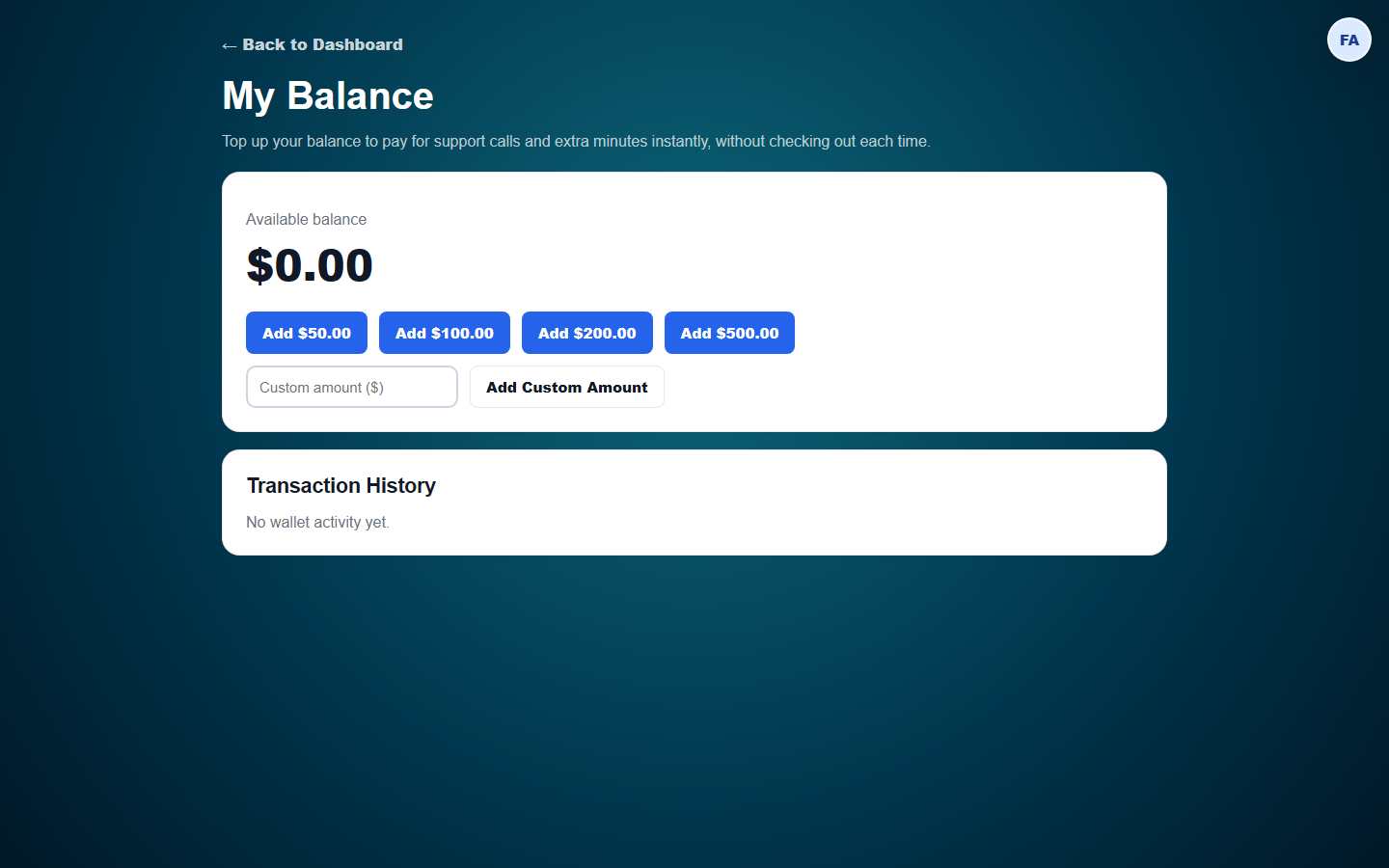
What is the wallet / balance for?
A prepaid balance you can top up and spend on support-call payments instead of paying per case with a card each time. Company technicians may instead draw from their company's shared balance, if their company owner has allowed it (see below).
For company owners & managers
How does a repair company work on TechLine?
One technician creates the company (during sign-up, or by creating one later) and becomes its owner. The owner can invite other technicians and — owner only — managers, each by email. Managers get the same day-to-day company dashboard as the owner, minus a couple of owner-only controls (inviting a manager, granting unlimited budget).
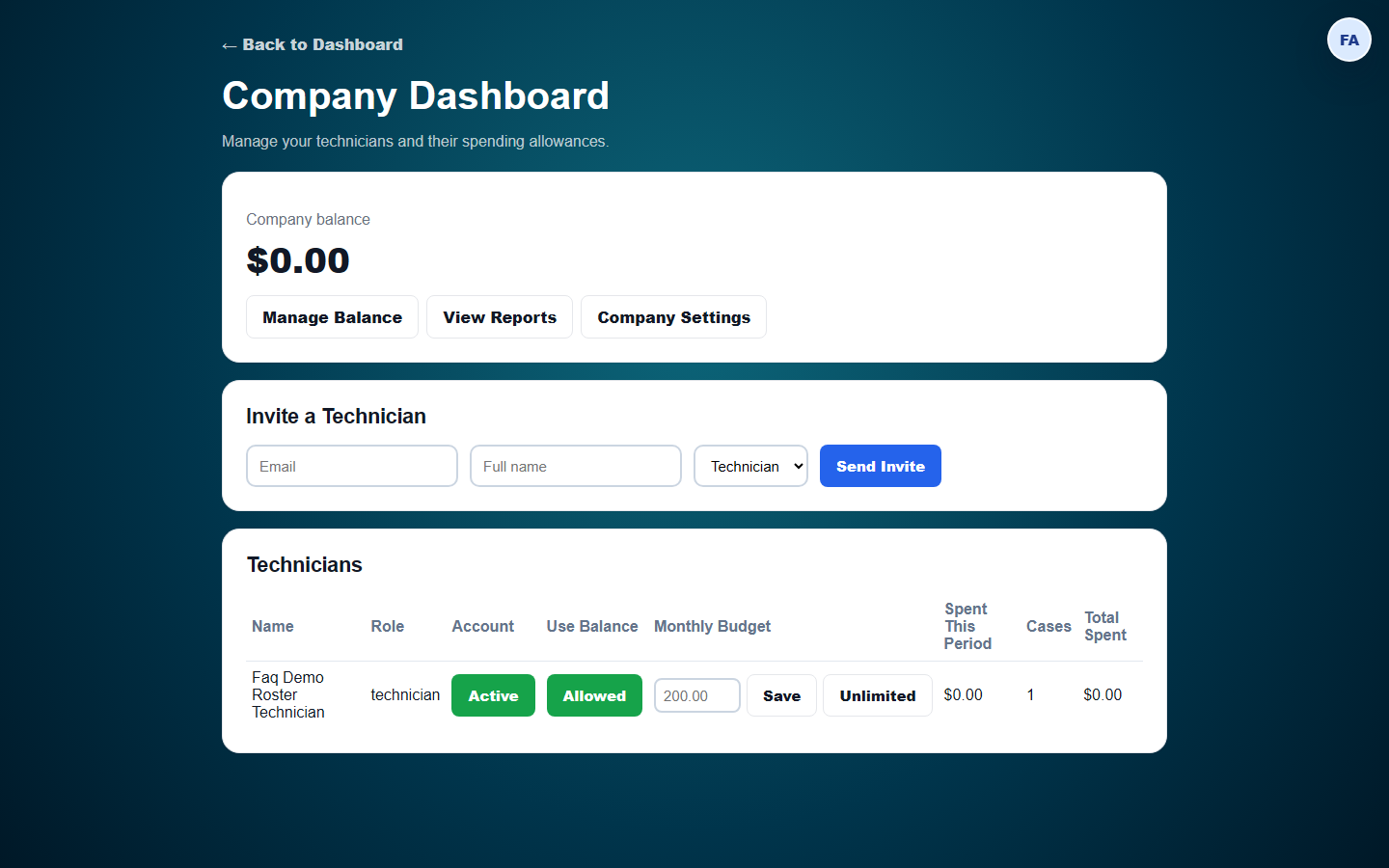
How do I invite a technician (or manager) to my company?
Company Dashboard → Invite a Technician: enter their email, name, and (owner only) whether they join as a Technician or a Manager, then Send Invite. They get an email with a link to set their own password and start using the company's support cases.
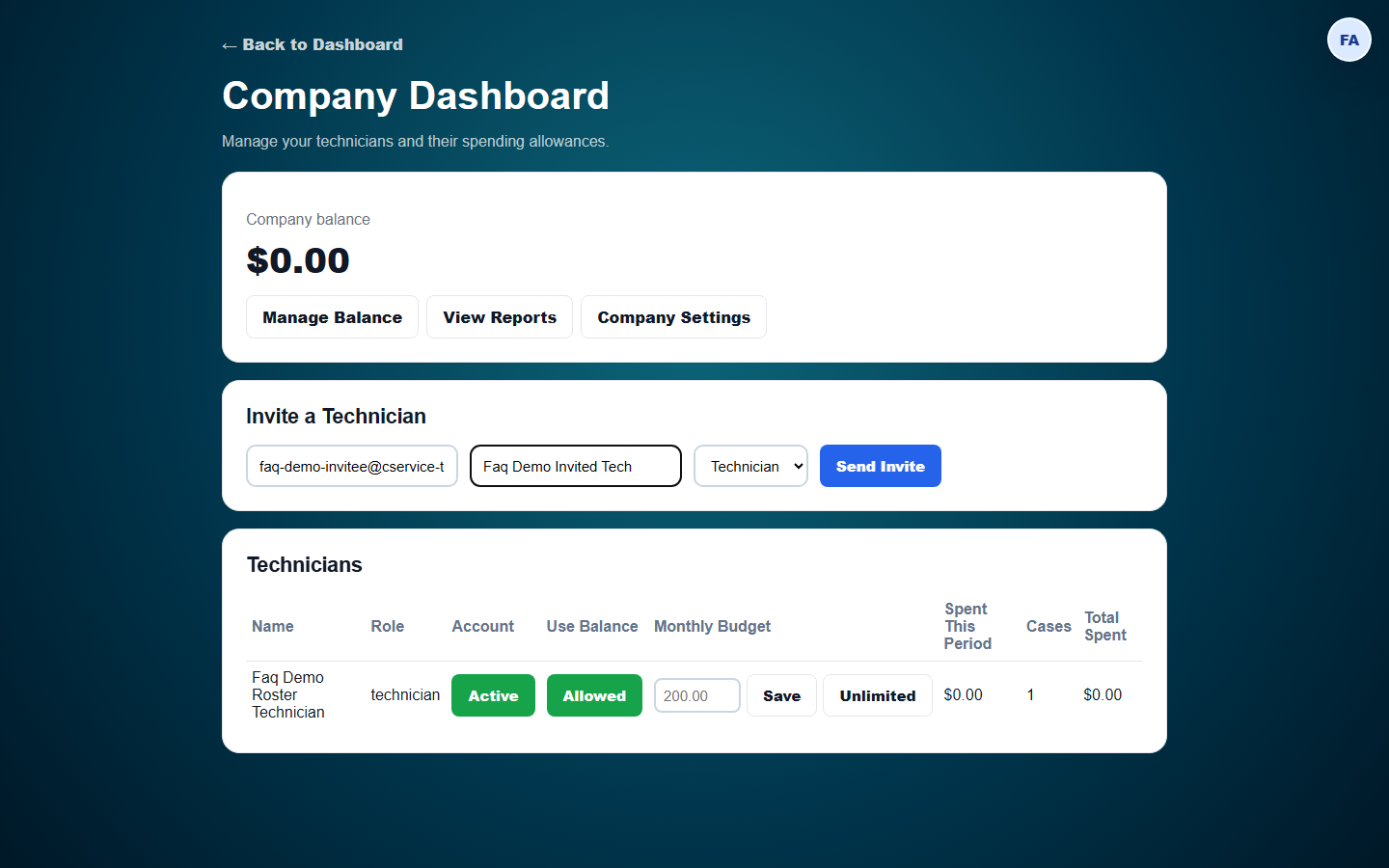
What can I control for each technician?
Active/Disabled toggles whether they can use the account at all. "Use Balance" controls whether they're allowed to spend from the company's shared wallet balance. If they can, you set either a monthly budget in dollars or mark them Unlimited — spending resets each period.
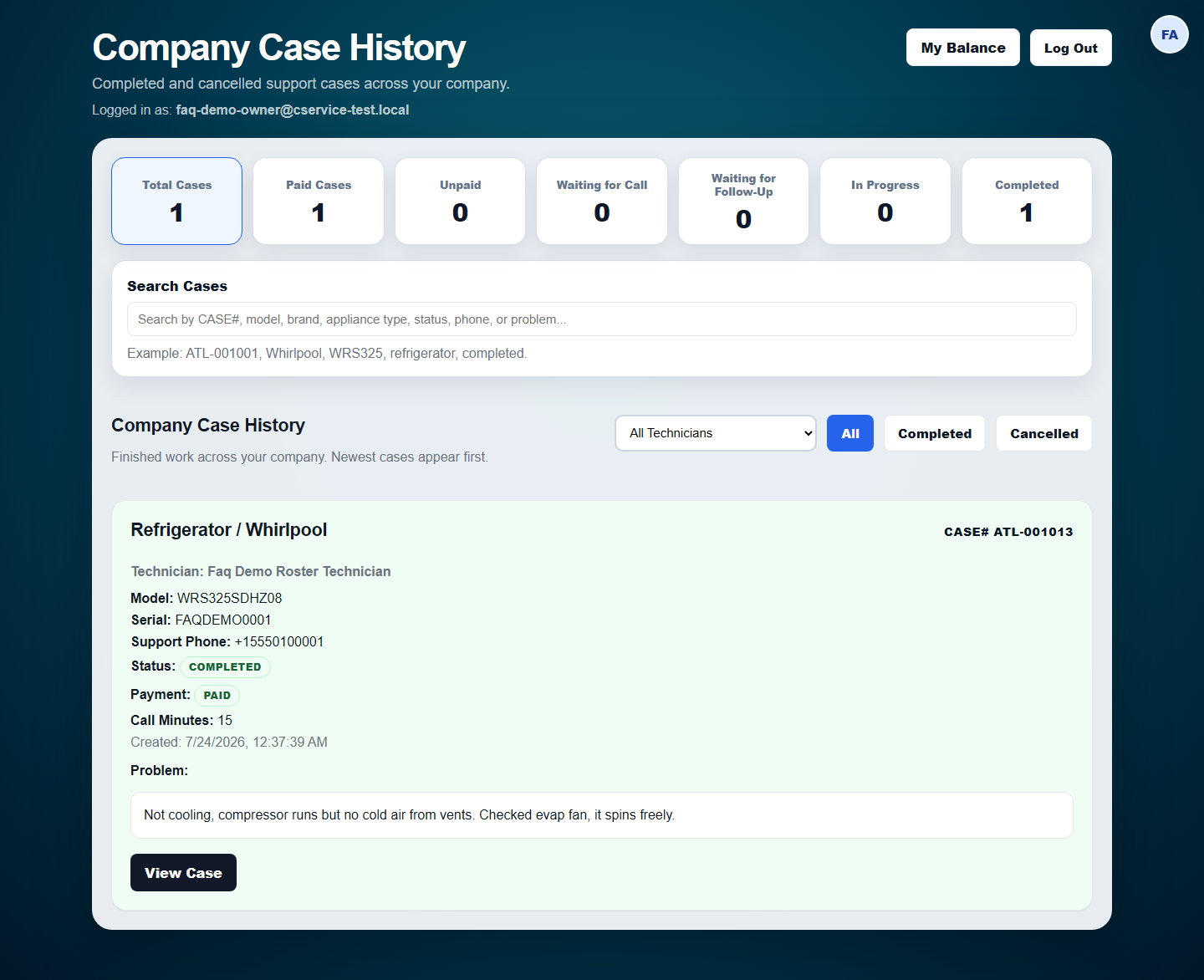
What do I see across my company's cases?
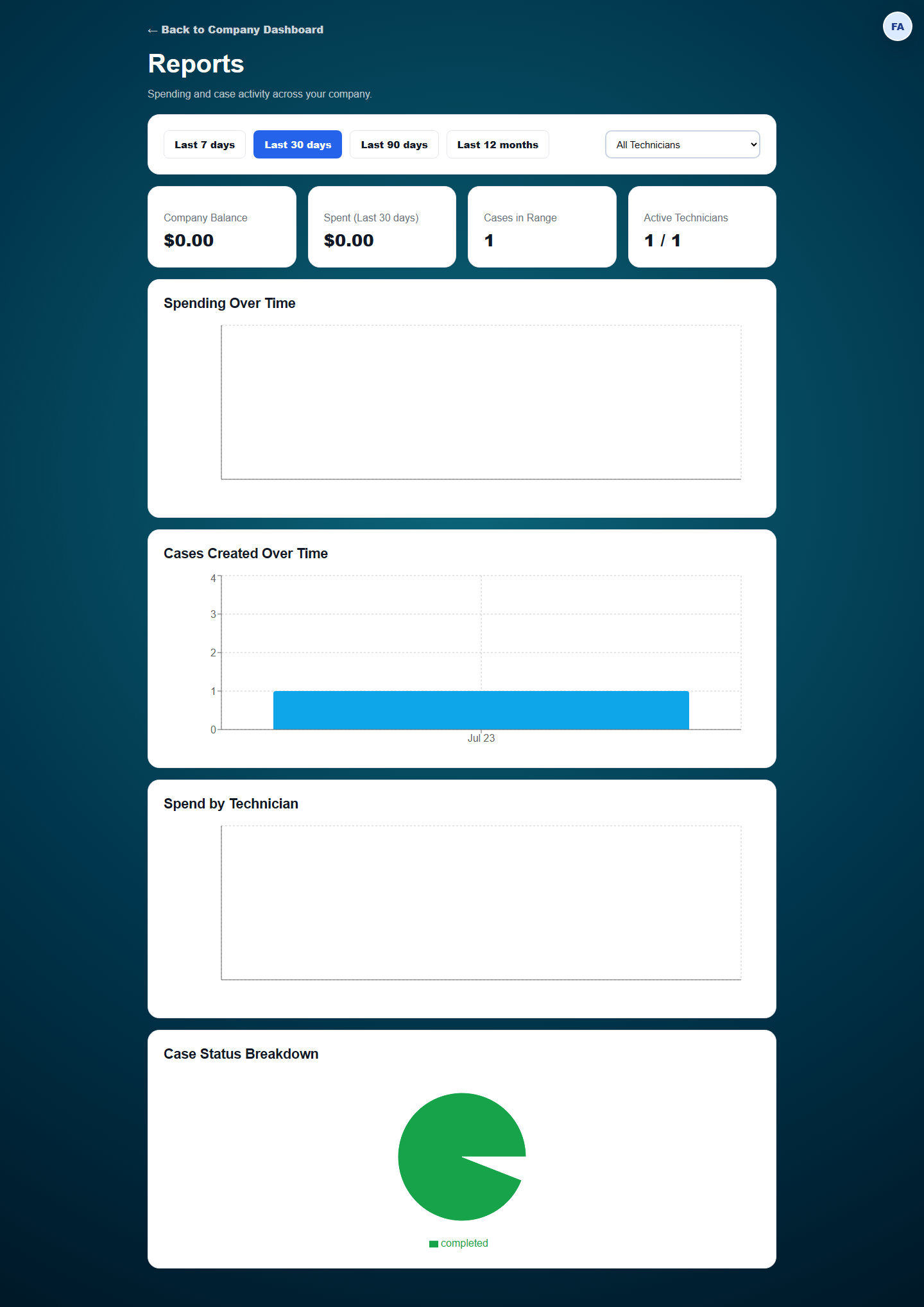
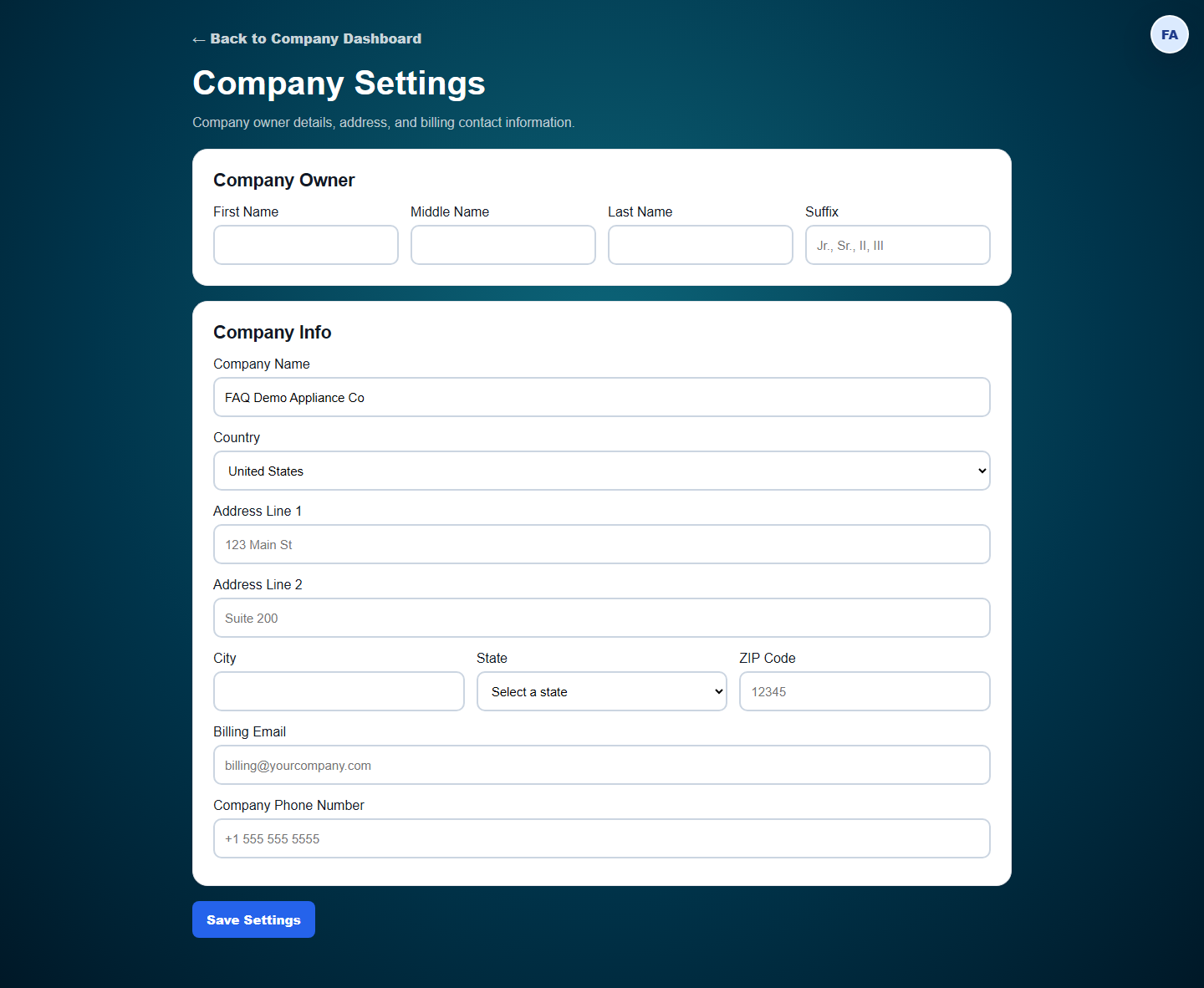
The main dashboard becomes a read-only Company Case History — completed and cancelled cases across every technician in your company, filterable by technician. Company Settings holds your billing details; Reports charts spending and case volume over time, company-wide and broken down by technician.
For Support Experts
How does a support expert get assigned a case?
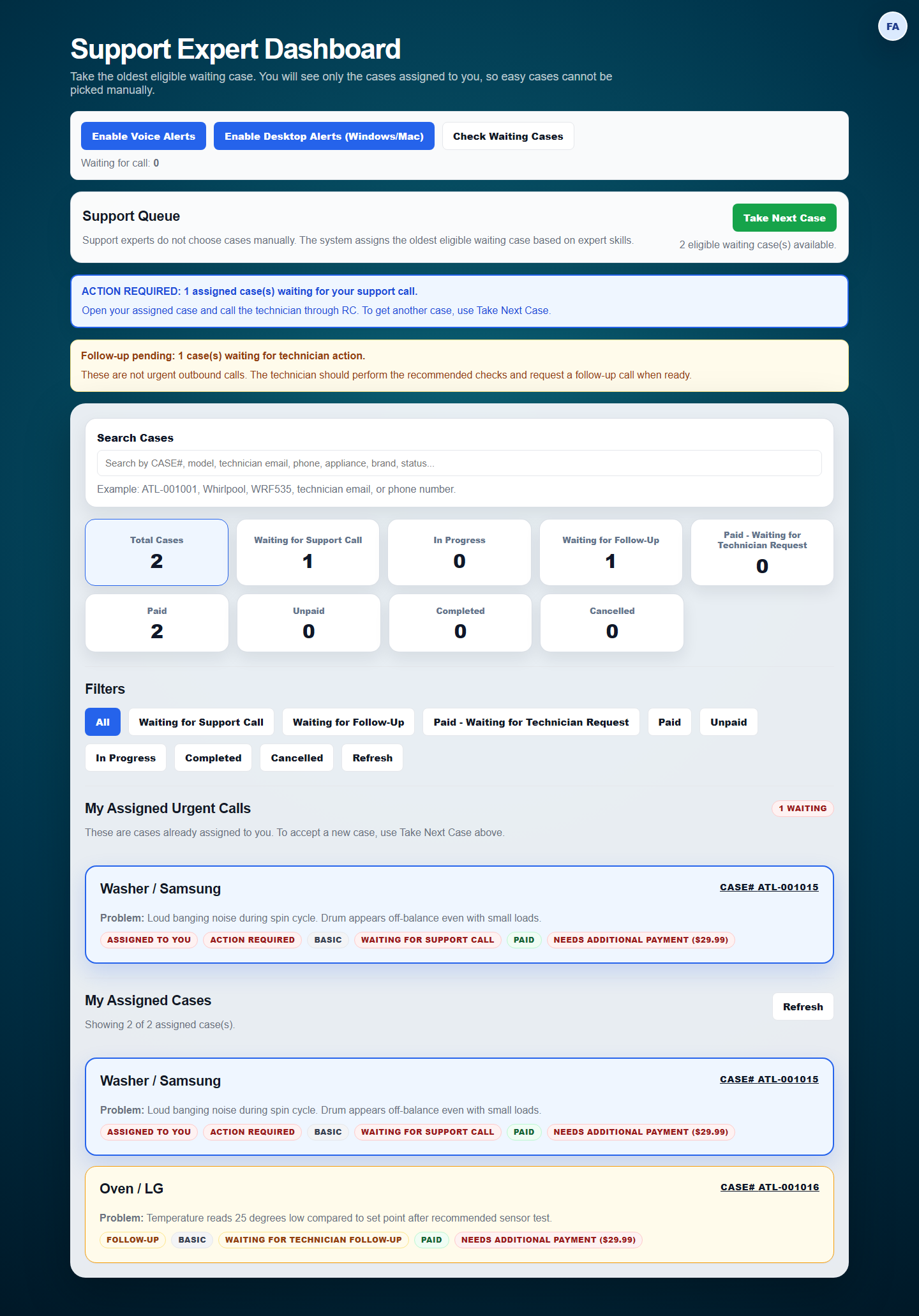
Support experts don't pick cases manually — click Take Next Case and the system assigns the oldest eligible waiting case that matches your configured skills (basic, advanced, sealed system, commercial refrigeration/appliances, PCB, HVAC). Your dashboard shows only cases already assigned to you, plus a live count of eligible cases waiting in the queue and optional voice/desktop alerts for new ones.
What do I do on an assigned case?
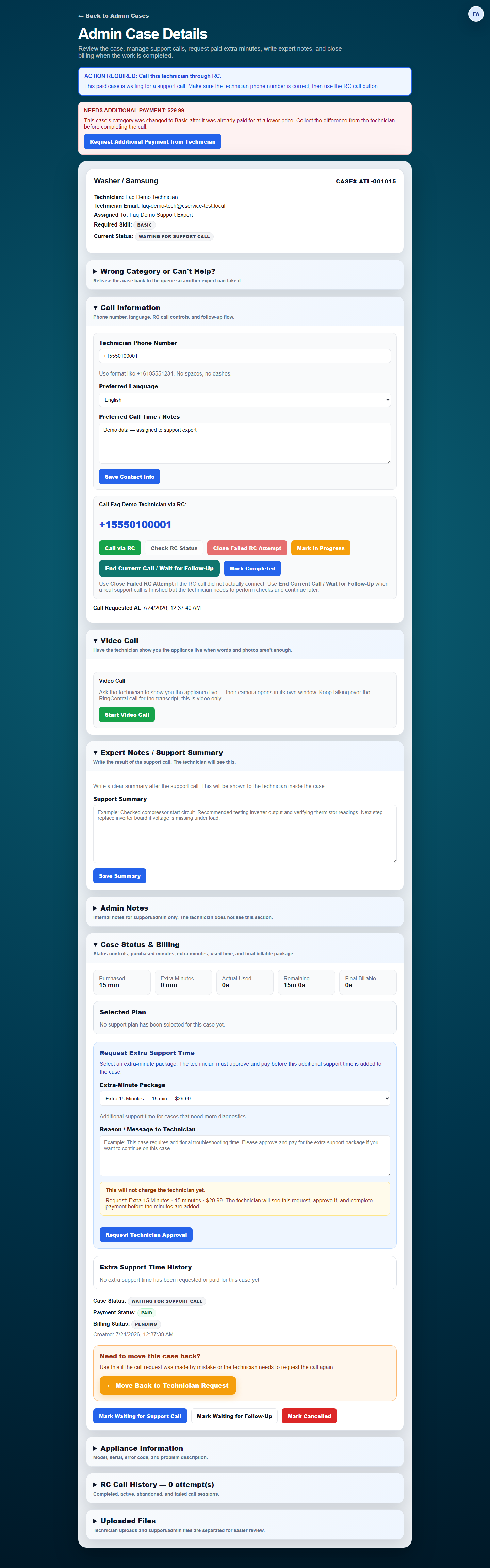
Open the case, review the appliance details and any uploaded photos/diagrams, then call the technician through RingCentral (or start a video call instead — it opens in its own full-screen tab). When you're done, mark the case complete with a support summary, or leave it as "waiting for follow-up" if the technician needs to run more checks before the next call.
For Super Admins
What does a super admin see that a support expert doesn't?
Everything — the Admin Dashboard shows every case from every technician (not just your own assignments), and you can also take a case yourself the same way a support expert does.
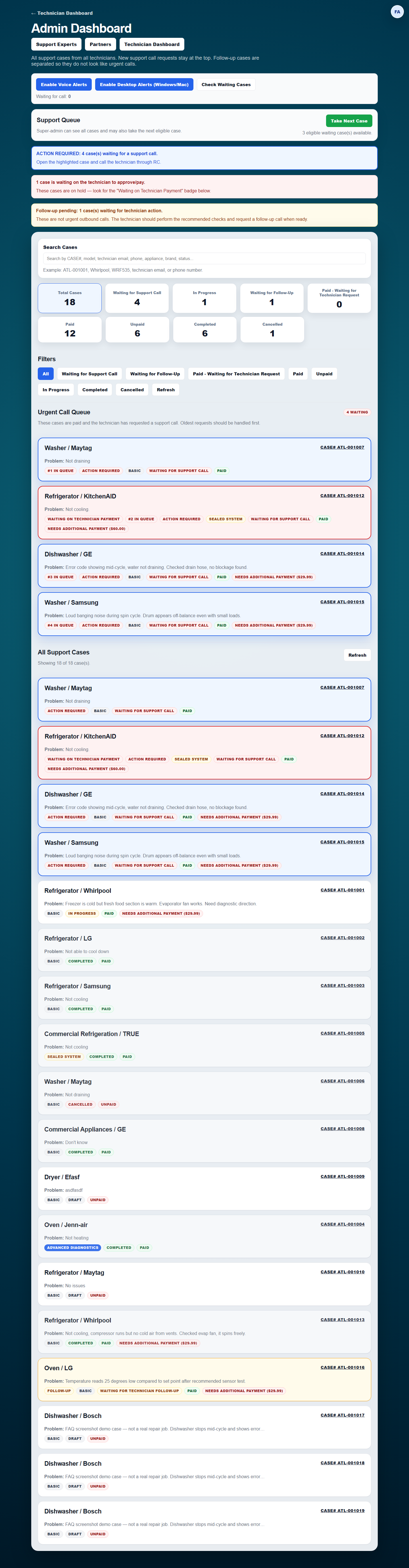
How do I manage support experts and their skills?
Admin Dashboard → Support Experts: invite new admin accounts by email (invited accounts always start as a regular Admin/Support Expert — Super Admin can only be granted by editing an existing profile), then configure each expert's ring-out phone, public bio, languages, and which skills they're allowed to handle. That skill list is exactly what drives Take Next Case's matching for that person.
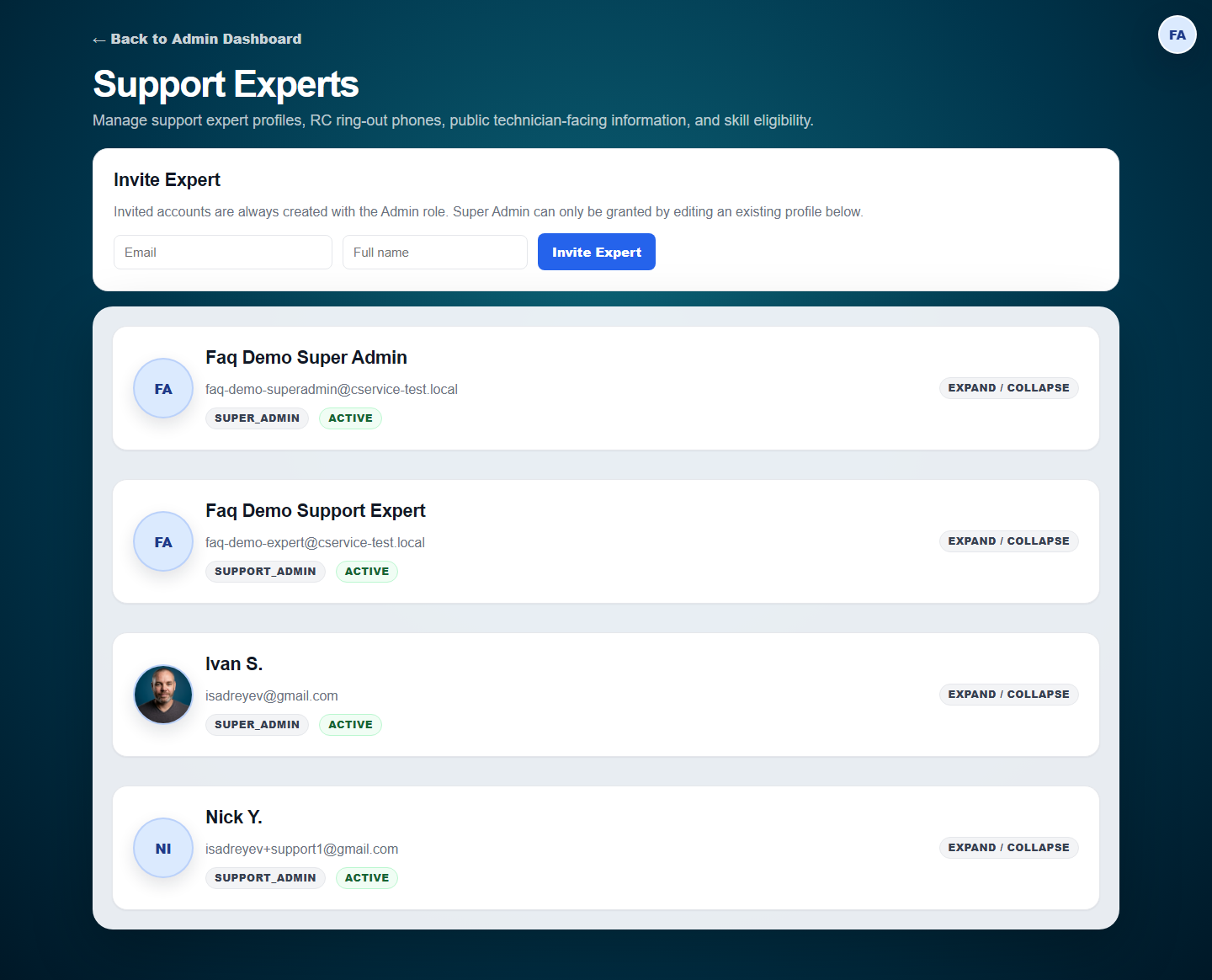
Where do partner logos and pricing come from?
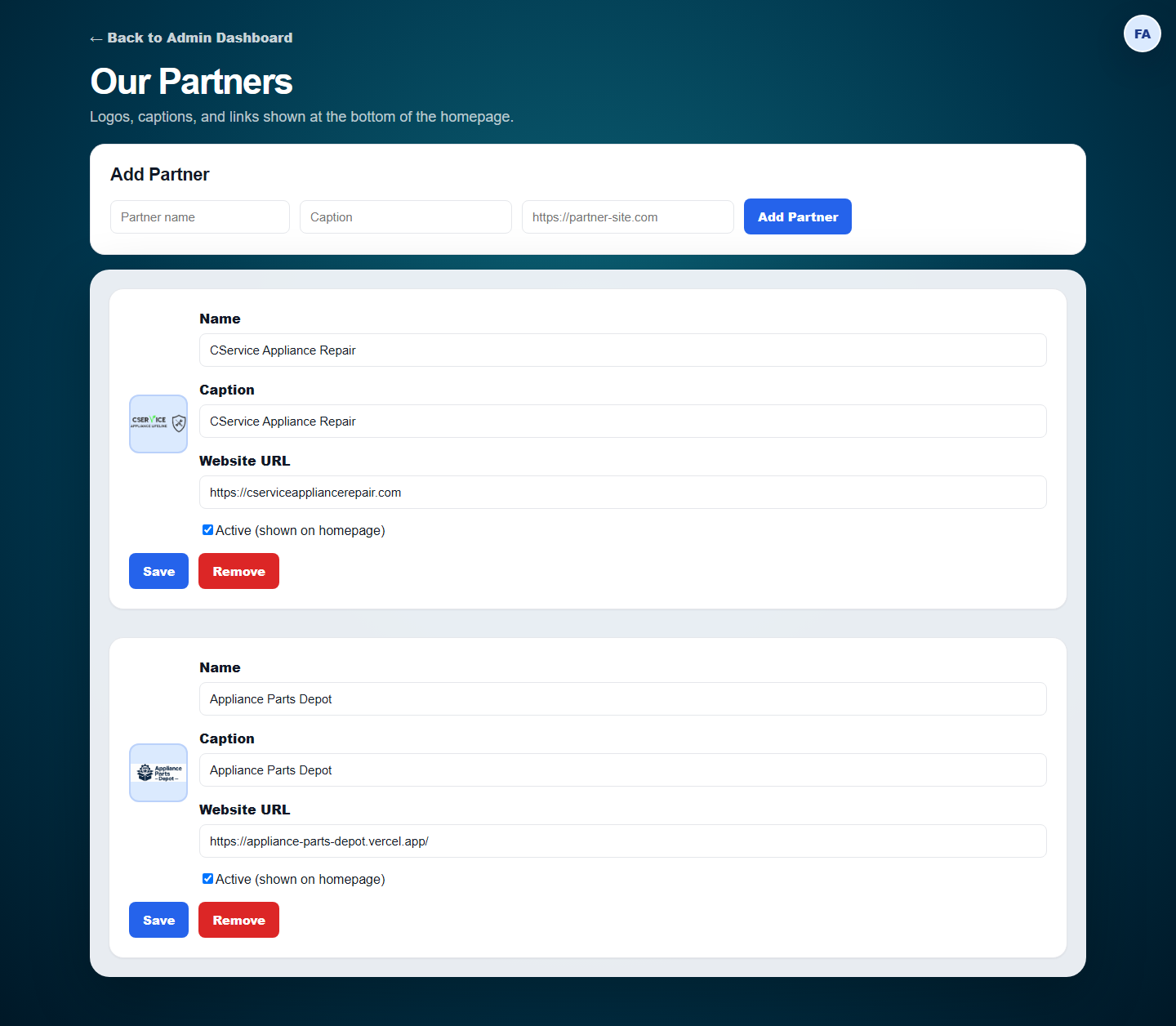
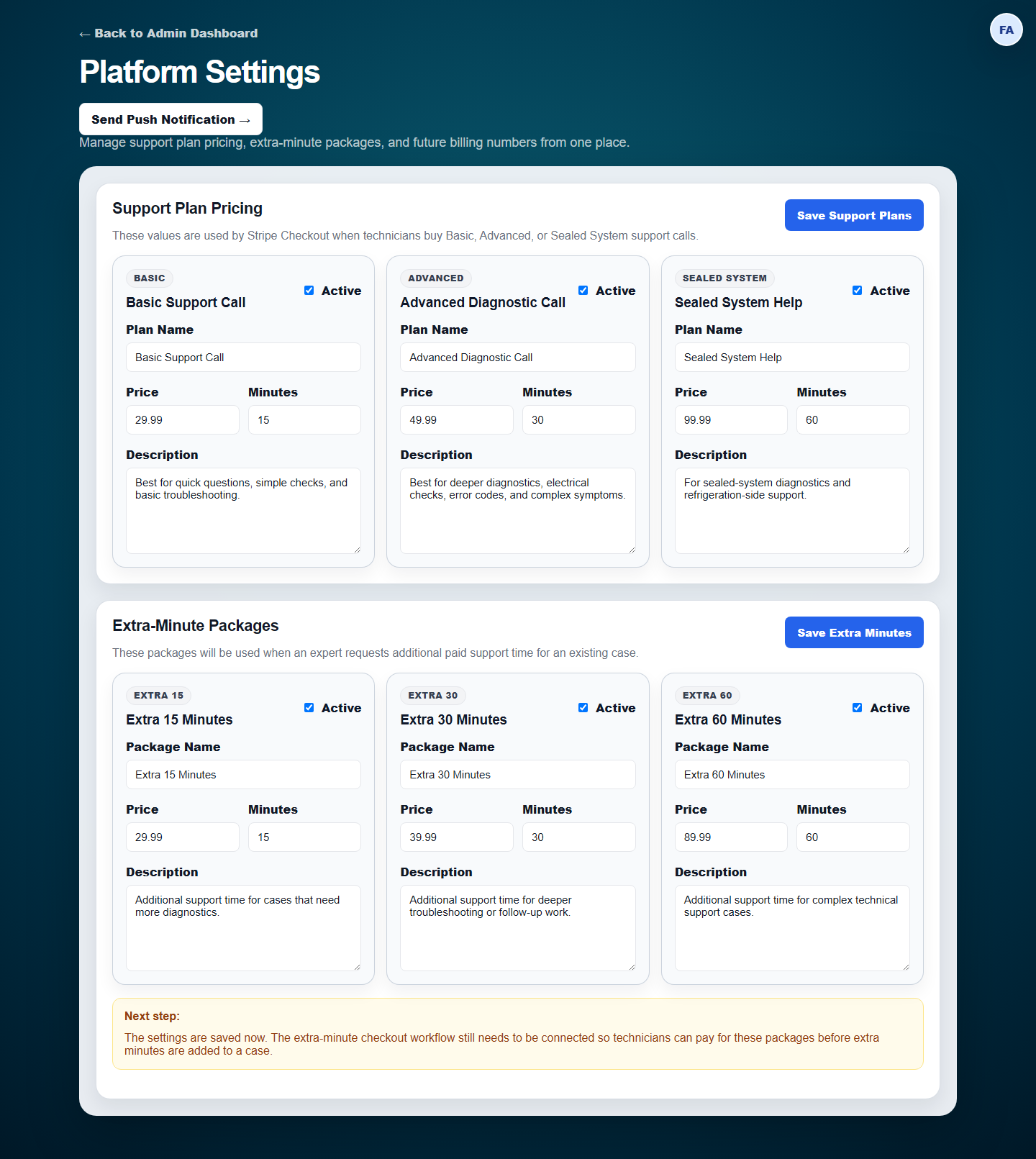
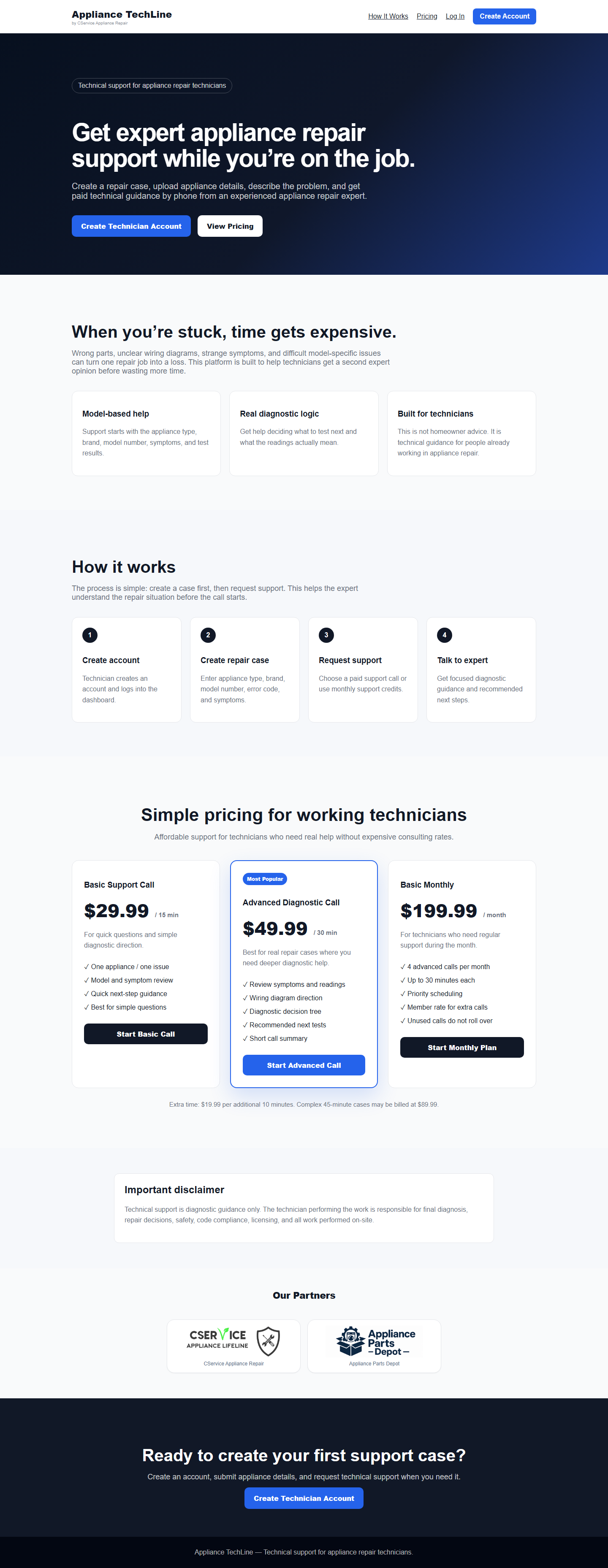
Admin Dashboard → Partners manages the logos/links shown in the homepage's "Our Partners" carousel. Admin Dashboard → Settings sets the live price and included minutes for each support plan (Basic, Advanced, Sealed System) and each extra-minutes package — these are the same prices shown on the public homepage and used at checkout.